
Disconnect and Remove a Channel
When you no longer operate a channel, first disconnect it from Ankk. You can then permanently remove it from the disconnected channel list if needed.
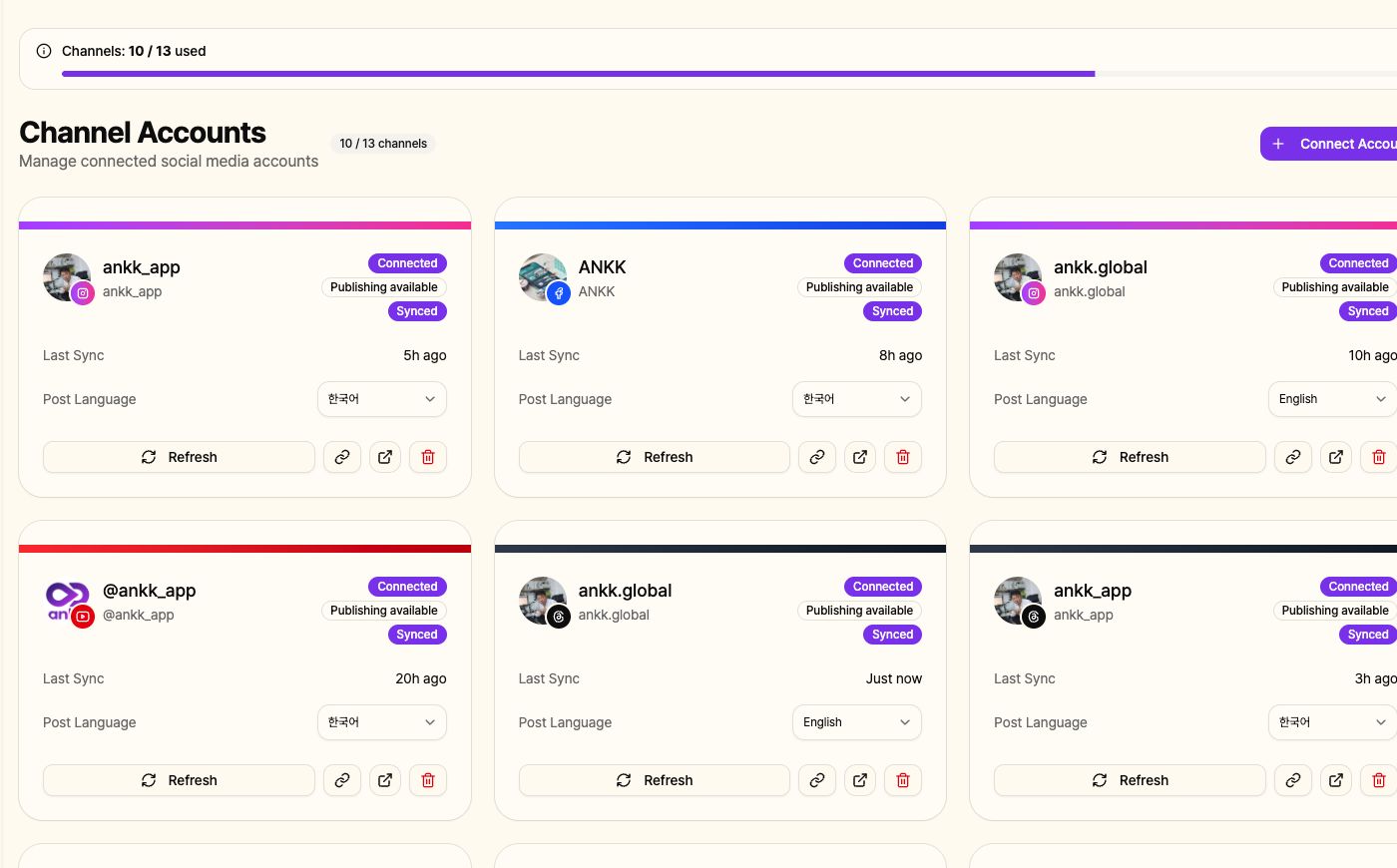
Before you remove a channel
Section titled “Before you remove a channel”- Disconnecting stops scheduled publishing and syncing for the channel.
- Existing publishing history remains available in Ankk.
- The SNS account itself and posts already published on the SNS platform are not deleted.
- If you need to review scheduled posts, open the channel’s Queue before disconnecting it.
1. Disconnect the channel
Section titled “1. Disconnect the channel”- In the left sidebar, select Connect Channel under Channels.
- Select the red trash icon on the channel card you want to disconnect.
- Review which operations will stop in the confirmation dialog.
- Select Delete.
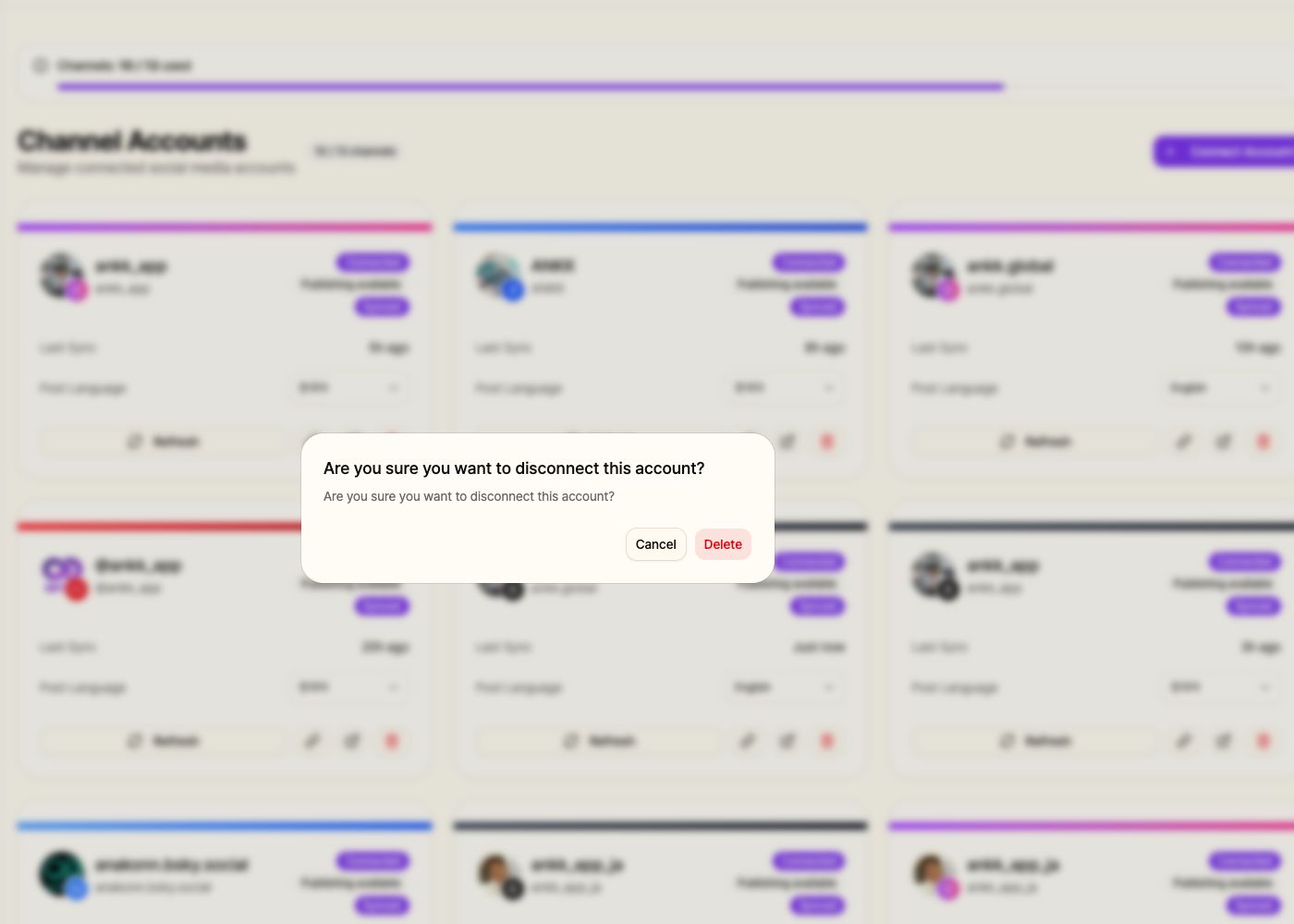
After the connection is removed, the account moves to the Disconnected Channels section. Scheduled publishing and syncing stop, and the channel no longer counts toward your connected channel usage.
2. Permanently remove the channel from the list
Section titled “2. Permanently remove the channel from the list”You can leave a disconnected channel in the list and reconnect it later. To remove it from the list as well:
- Go to the Disconnected Channels section at the bottom of the channel management page.
- Select the red trash icon on the channel you want to remove.
- Read the message in the Remove permanently confirmation dialog.
- Confirm the removal.
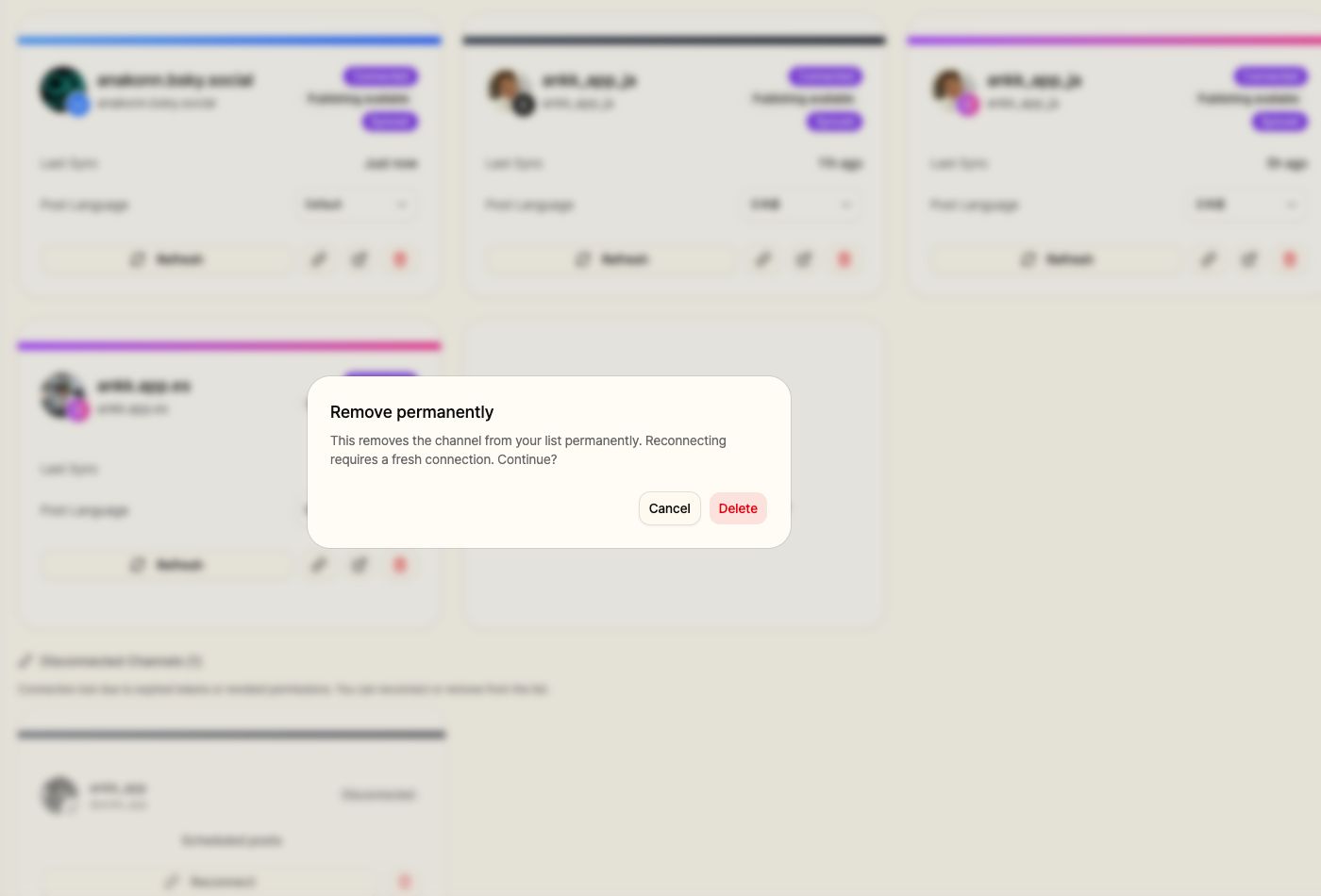
The channel is removed from your Ankk channel list. To use the same account later, start again from Connect Account.
When to keep the connection
Section titled “When to keep the connection”- If authentication expired or permissions are missing, choose Reconnect Channel instead of removing it.
- If you only plan to pause publishing and want to keep the existing connection, you do not need to remove the channel.